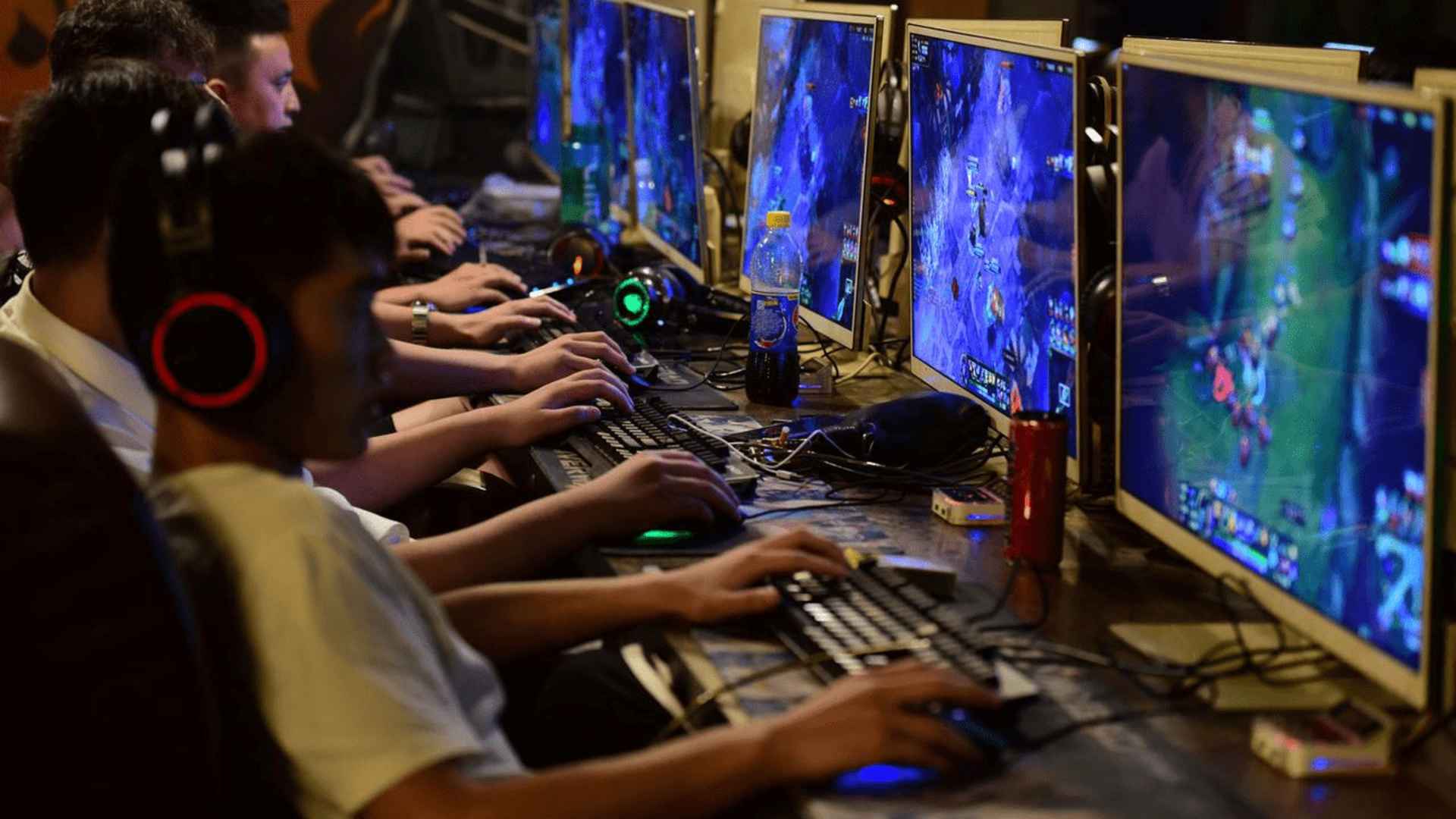
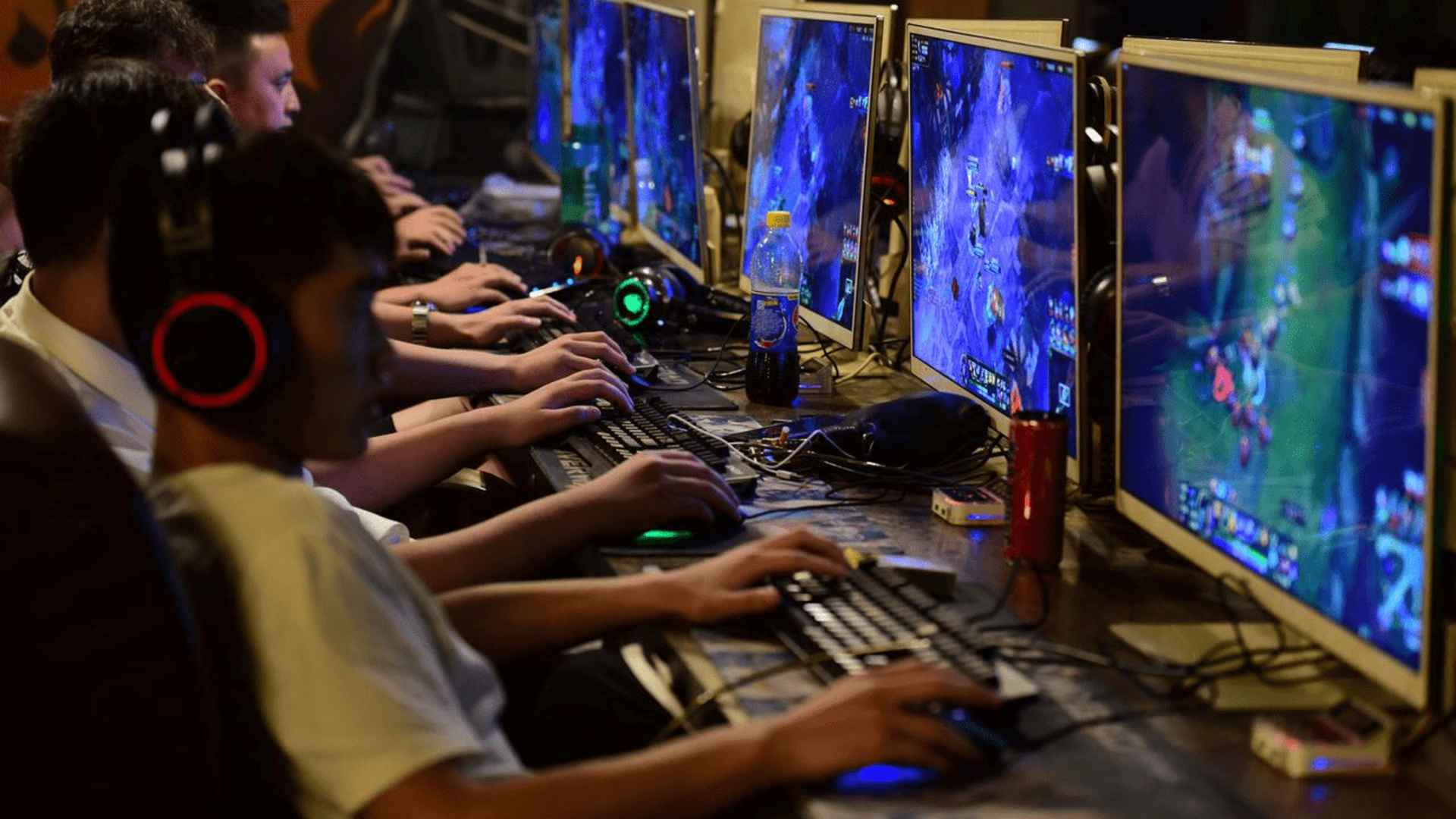
Setting up a multi-monitor display transforms your PC gaming setup, but it frequently introduces an annoying bug where video games unexpectedly launch on your secondary screen. This frustrating mismatch usually occurs because the operating system and the game engine disagree on which display is currently designated as the main workspace. Fortunately, you can quickly redirect your software back to the correct screen by utilizing built-in Windows shortcuts or adjusting specific options menus inside the game itself.
Configure Your Primary Display Settings
The most common culprit behind this display issue is an incorrectly configured main monitor within your operating system properties. To resolve this, right-click on your desktop, choose the display settings option, and click on the specific diagram block corresponding to your preferred gaming screen. Scroll down to the multiple displays section and check the box that forces the operating system to treat this specific hardware as your main display.
Many modern video games will automatically look at this specific Windows configuration registry before initiating their first-time render path. Updating this global setting ensures that all future applications know exactly where to direct their visual output without manual intervention. If your game still refuses to cooperate after this adjustment, you may need to look at more immediate software overrides.
Utilize Handy Windows Keyboard Shortcuts
When a game launches on the incorrect monitor, you do not always have to restart the application or dig through complicated system options to move it. Instead, you can click on the active game window to ensure it has focus and then press the Windows key along with Shift and either the Left or Right arrow key simultaneously. This instant command instructs the operating system to shift the active application directly to the adjacent display while maintaining its rendering state.
Once the application has moved over, entering the graphics settings and toggling the display mode to fullscreen will often force the game to save its new position permanently. This quick keyboard technique is incredibly helpful for software that lacks an internal monitor selector. It provides a painless way to bypass technical glitches without altering your permanent desktop layout.
Adjust Internal Game Settings and Windowed Modes
Many modern PC games include dedicated video menus that let you choose exactly which hardware display adapter or target monitor to utilize for rendering. If your game keeps opening in the wrong area, navigate to its internal graphics properties and look for a setting labeled monitor selection or display target. Manually changing this value from default to your preferred monitor will instantly re-route the active gameplay loop.
If the game lacks a direct display selector, you can temporarily change the display mode from fullscreen to windowed or borderless windowed mode. This change allows you to manually drag the window over to the desired screen using your mouse cursor. Once you restore the fullscreen setting on the correct monitor, the game config files will usually update to remember this spot for future sessions.